


May 29, 2026
How to Update Your Strutt ev¹c Software: A Step-by-Step Guide
At Strutt, our engineering team is constantly working behind the scenes to optimize your driving experience, add new features, and ensure your ev¹ is running as smoothly and safely as possible. To get the most out of your vehicle, updating your software to the recommended version by our support team is essential. Just like your smartphone, your ev¹ gets smarter over time.
If you've got an update waiting, here is everything you need to know to get your system upgraded and get back to driving.
The Pre-Update Checklist
Software updates are major system overhauls. Before you press the update button, make sure your ev¹ is parked.
- Check your connection: Your ev¹ needs a stable Wi-Fi connection to download the package.
- Check your battery level: Ensure your vehicle has at least 50% battery, or keep the device charging.
- Clear your schedule: The whole updating process takes around 30 minutes. The vehicle's screens and systems will be completely offline during this time.
Step-by-Step: How to Update Your Strutt ev¹ Firmware
Ready to go? Follow these quick steps to upgrade your ev¹.
Step 1: Look for the Information Menu
From your main home screen, swipe down from the top to pull up the quick-access menu. Tap the Information button (the icon with the "i" inside a circle).
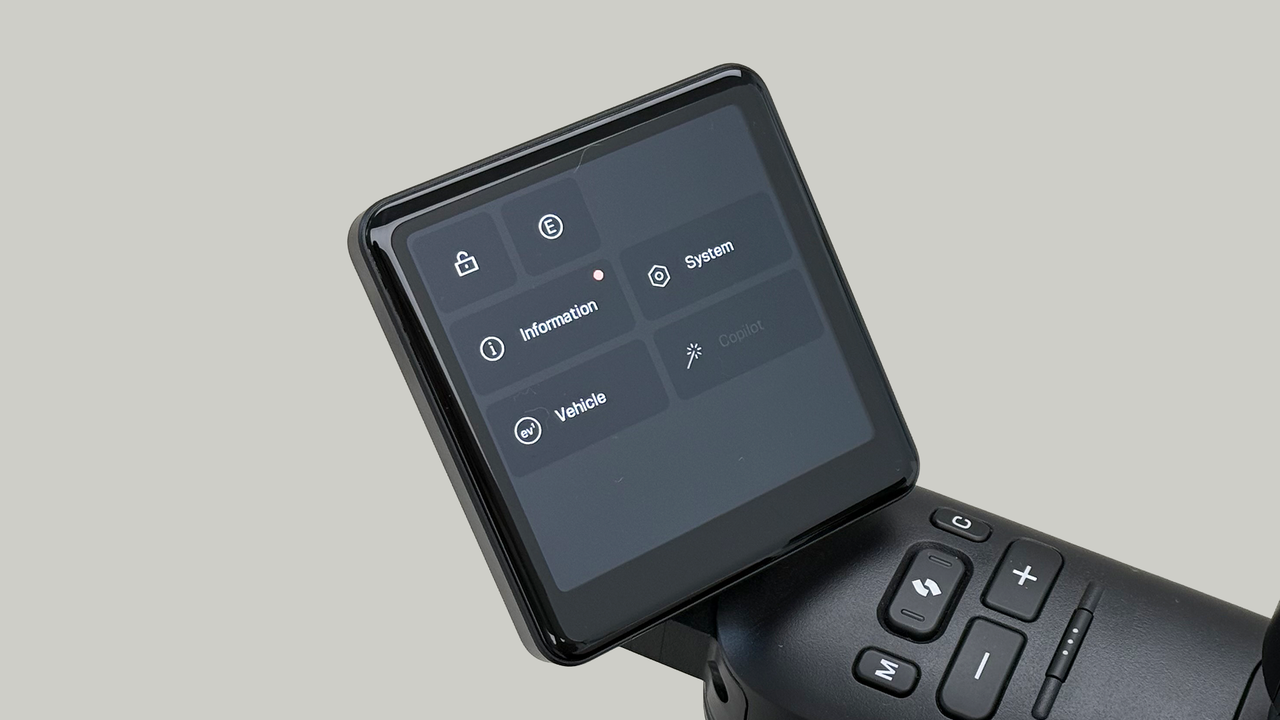
Step 2: Check Your Current Version
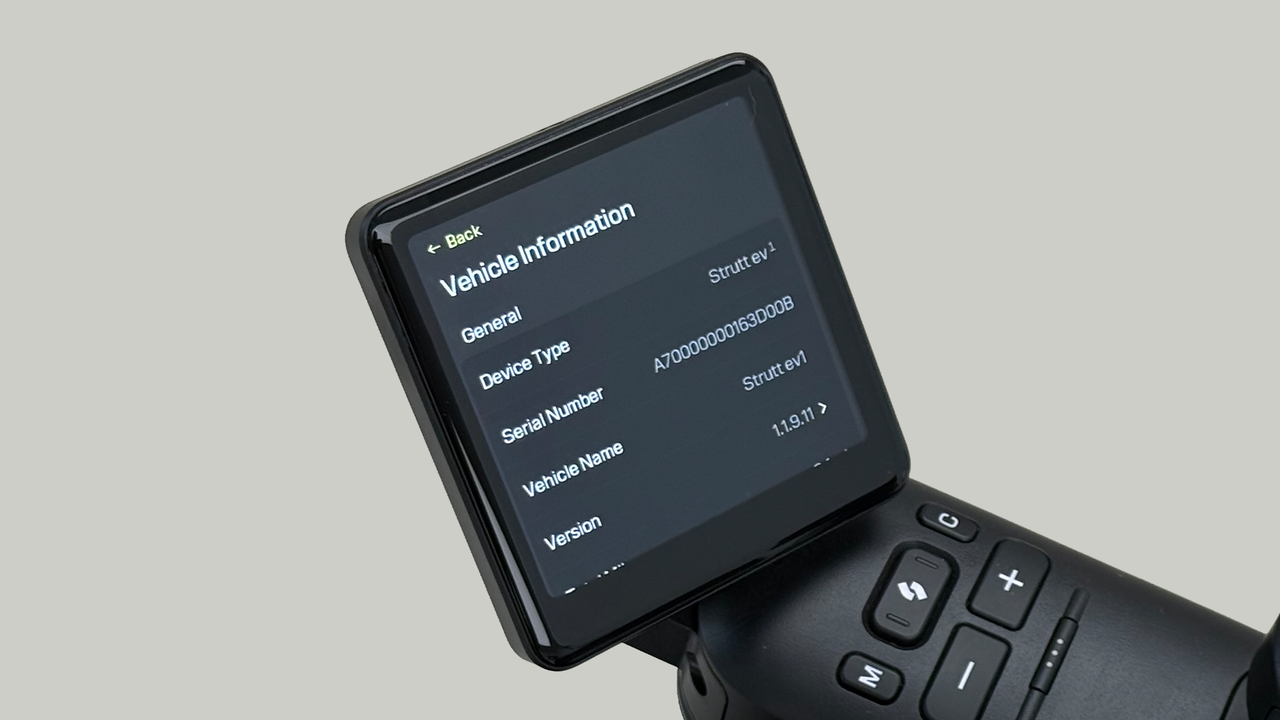
You are now on the Vehicle Information screen. Your version number will be displayed next to the Version field. Tap on it to see the available upgrade.
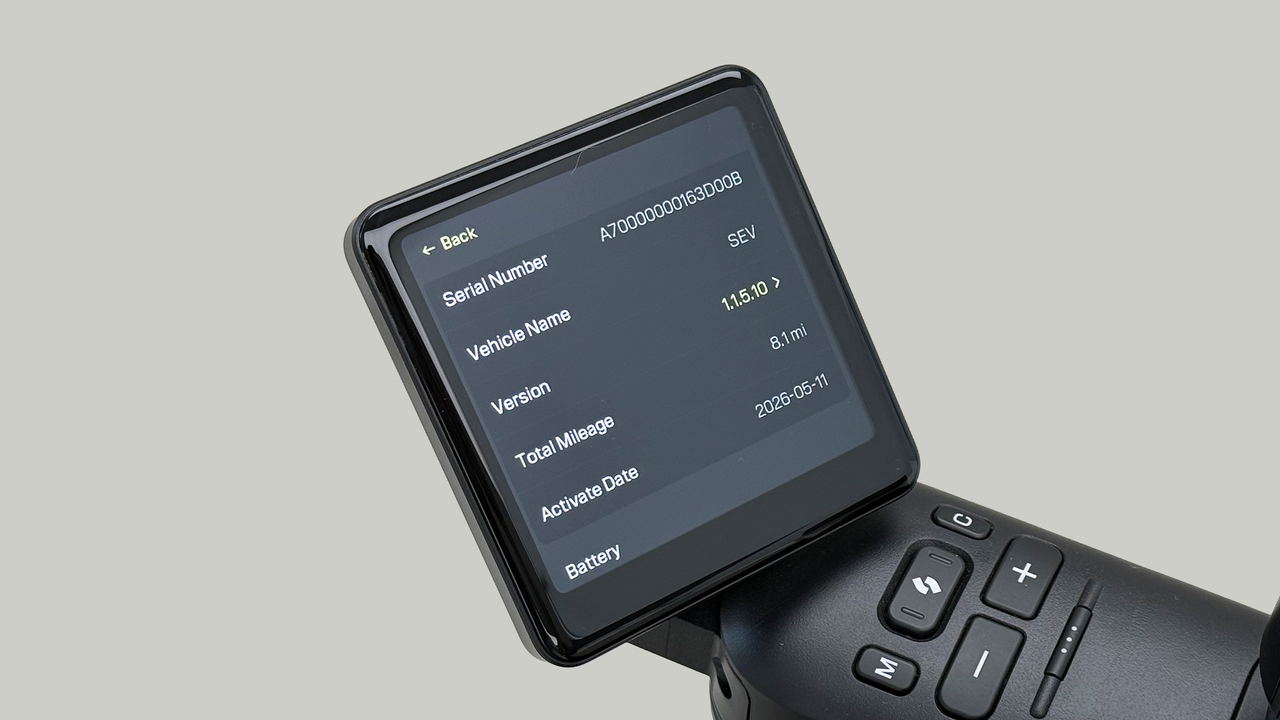
Step 3: Read the System Update information
Tap the version number on your screen to read the release notes. Press the yellow Update button at the bottom of your screen to acknowledge the firmware you will be upgrading to.
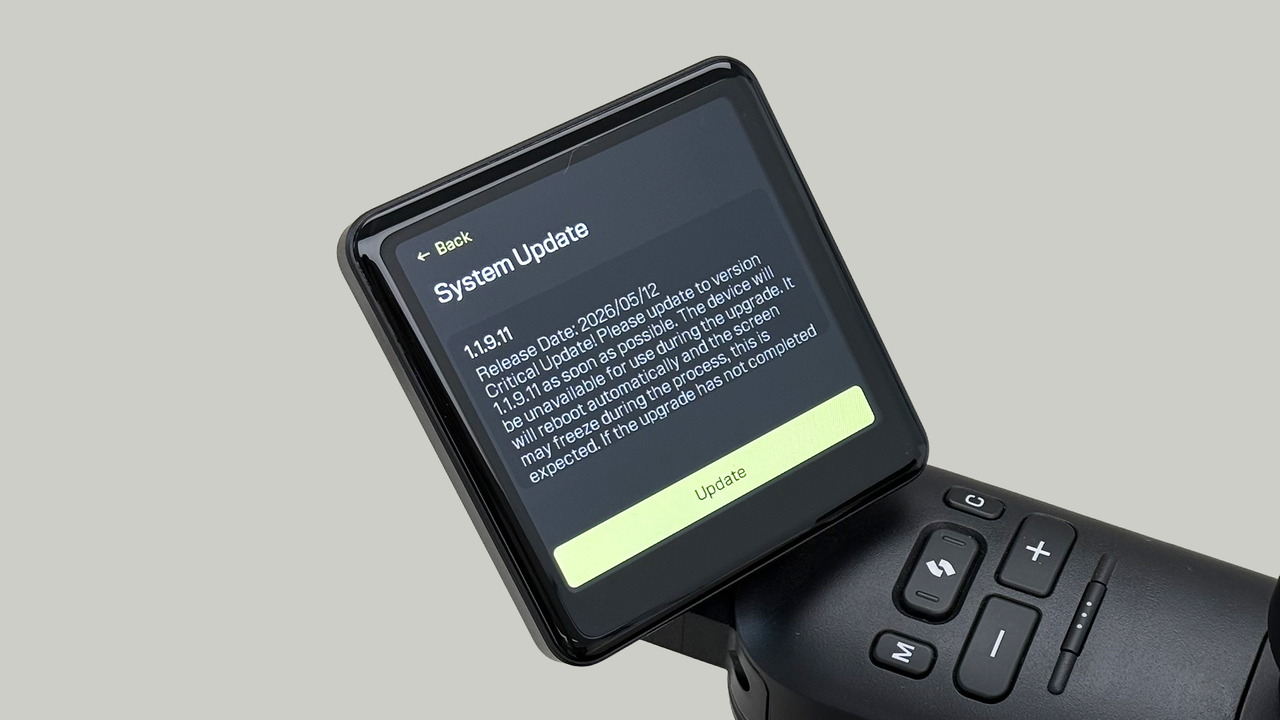
Step 4: Confirm the Installation update message
A warning screen will pop up reminding you that your vehicle will be unusable for about 30 minutes while it reboots. Tap Confirm to acknowledge the message and proceed with updating.
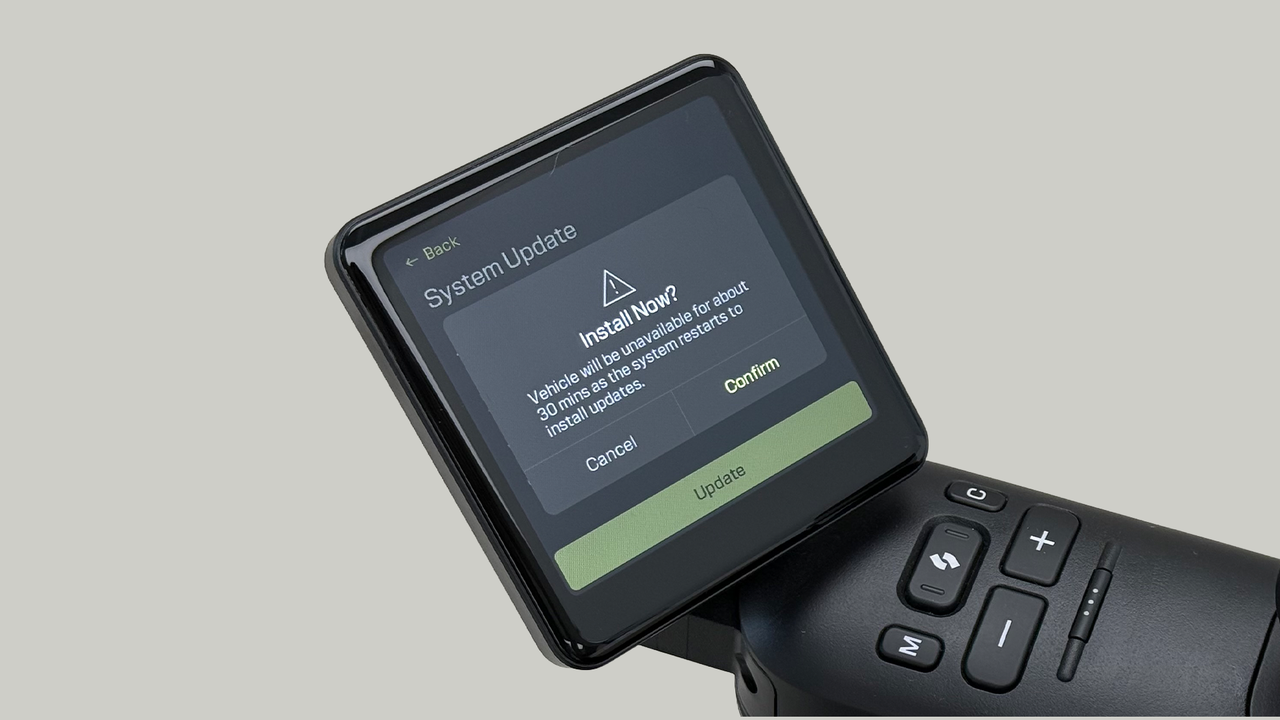
Step 5: Hang Tight
Your screen will switch to a progress bar showing downloads and updates. The system will automatically reboot when the update is completed.
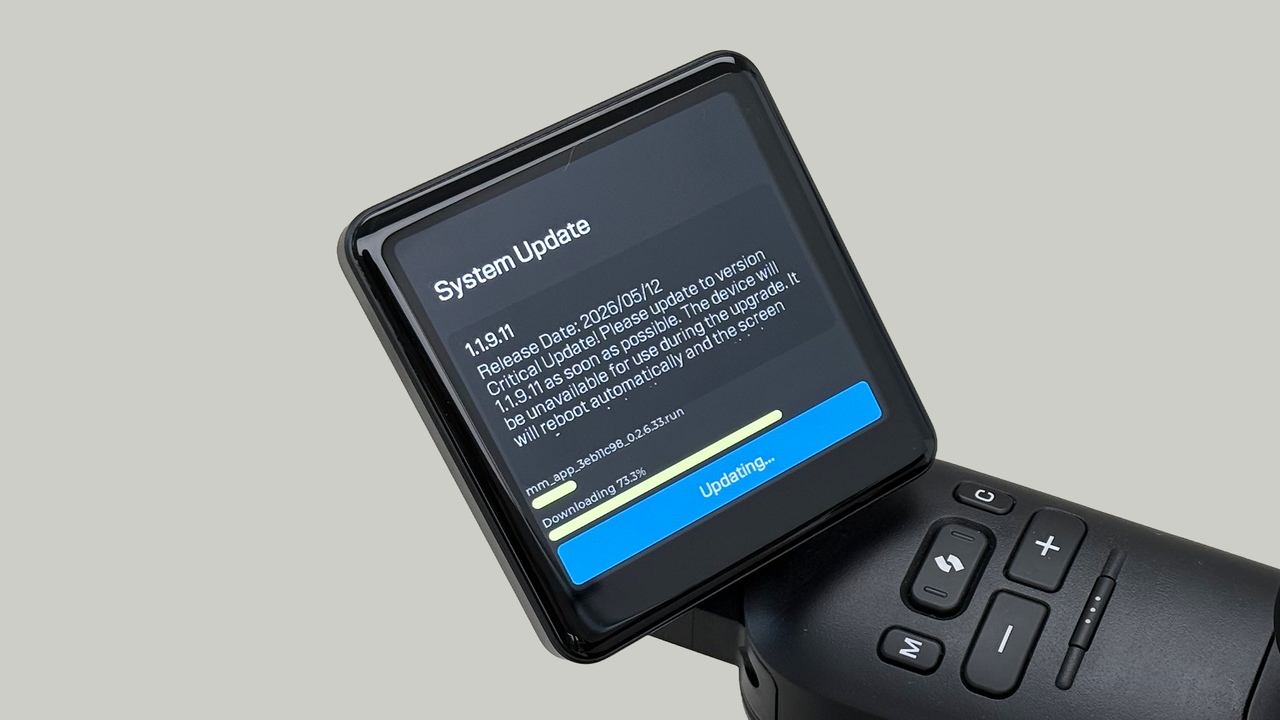
Q: Did the system update fail?
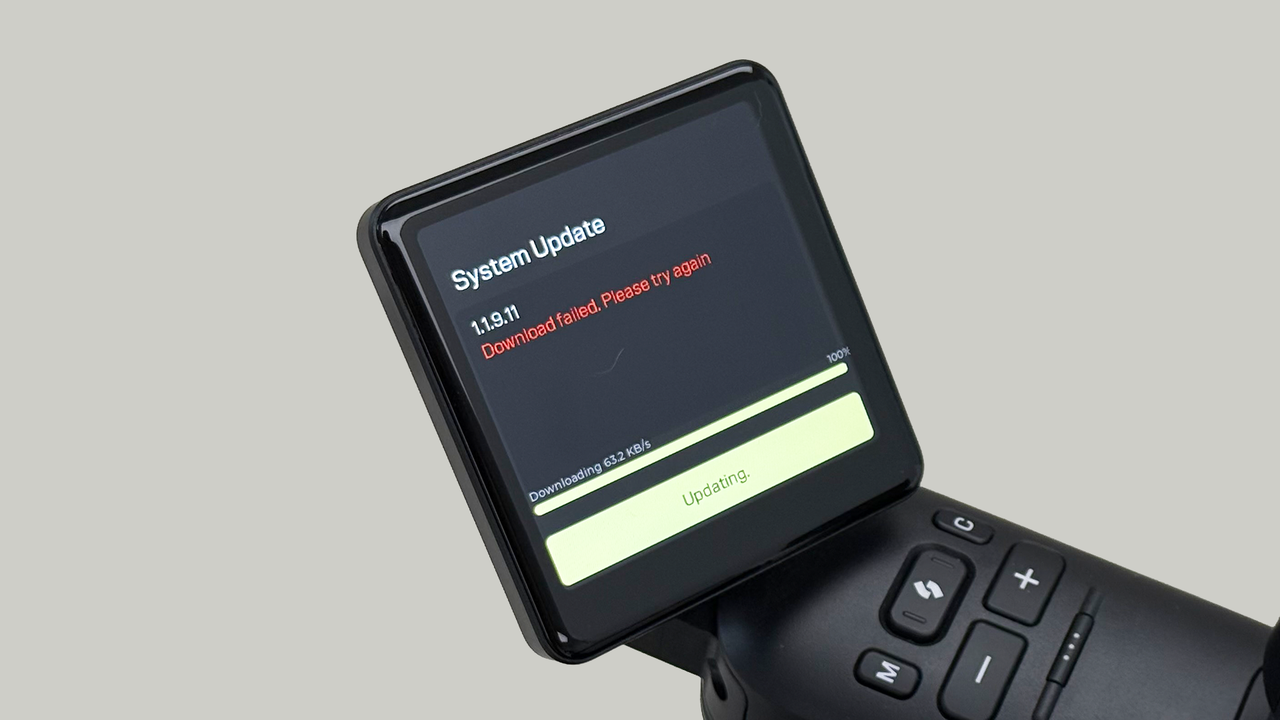
If you see the message below, turn the vehicle off and on again. The system update screen will appear. Next, repeat the update process above.
Step 6: Verify the Update
Once the updates are complete and the system reboots, double-check that the firmware has been upgraded to the latest version. Repeat Steps 1 and 2 to open your Vehicle Information screen. Look for the version number field and confirm that the new version number is indicated.
Troubleshooting: What if the update fails?
Tech hiccups happen. If your screen flashes a "Download failed" error, please try again. Run through the checklist before you try upgrading again:
- Did your Wi-Fi drop off? Check that your Wi-Fi is stable, and your signal is still strong.
- Did you check your battery health? Ensure that your battery is at least 50% charged.
- Give it another shot: Once you've confirmed your Wi-Fi and battery health, start over from Step 1.
If you are still getting an error message after a second try, reach out to Strutt Customer Support at support@strutt.inc. Our team can help troubleshoot the issue and get you back on the road safely.


